

Tomas Egger
-
Posts
3514 -
Joined
-
Last visited
-
Days Won
20
Content Type
Profiles
Forums
Events
Everything posted by Tomas Egger
-
Ola Redcode, Video tutorials will be more and more used... We did new ones to Simcloth and MDD. Its really important to solve prbs fast. Thanksss Tom
-

Controlling visibility of a large number of objects
Tomas Egger replied to RobK's topic in EIAS General Forum
Ola RobK, What do you expect my friend? Render time visibility or faster feedback on EIAS viewports? Thanksss Tom -
Ola, Thanksss Blair. Tom
-
Ola Carlos, We have 2 different types of Curves in FCE (Velocity and F-curves): 1) Open my attatched project 2) Sphere Velocity Curve Group uses the After Effects way to control a animation based in Velocity and you animate your group using Viewports Handles like After Effects, if you double click in the group, you can change How many curves (X,Y,Z) to control your group position, “Implicit†key positions means = 1 velocity curve in FCE based in viewport path controled by handles, you cant break handles in the FCE window in this way, because you can only break using Command + Option (Alt) in the view ports (ISO, Camera Viewport). 2) Sphere F-Curve Group, uses F-curves (like Maya, btw: Maya only have this method), if you look in the group info window, its choosed “Explicit†to Key Position, which means, you will have 3 curves in FCE window (X,Y,Z) separated, you cant anymore change the path in the viewport with handles, but now you can Break the handles curves on each key frame using Command+option (Alt). FCE.zip I hope this help.. msg me with more doubts Thanksss Tom
-
Ola, GOOD LUCK TOO!!! Thanks Tom
-
Ola Alberto, Reallly beautifullll!!!! Thanksss Tom
-
Hey Bill, Im a realllly fan of reelmotion!!!! Thanksss Tom
-
some existing interface confusions
Tomas Egger replied to David's topic in Features propositions / Ideas
Ola David, I will take note of your suggestions.. :) Thanksss Tom -
Ola Steve, The best way is uncheck (in the middle of the process) the blue balls from all Camera slaves, but all cameras will finish the frame first, otherwise, only a “cold†quit. Thanksss Tom
-
Ola Geordie, You can setup all views in Software mode, Display “none†and then Show Extents in the ISO views (Top, Front, Side), In your Camera View you choose Display Outlines. You will have a faster feedback... Thanksss Tom
-
some existing interface confusions
Tomas Egger replied to David's topic in Features propositions / Ideas
Ola David, If I understood well your requests: EIAS have all these features... 1) I always used the same comands to all windows (ISO view ports, Camera, Texture window, Link window and so on..) - if you use command + Space bar (both pressed) and move the mouse = zoom in or zoom out - with option pressed and you click the “loupe iconâ€, its a fit to window command - with option pressed and you drag a area with your mouse in any view, you will Zoom in the specific area selected. - space bar pressed when you move the mouse, its a Pan in any window.. After that you have all combos to control Camera view port. 2) If I understood right, you want to move a entire path of your camera motion, its simple: - select all Camera Key frames in the project window - put in your time line in one of the Camera keyframes - press T to choose the transfor option (move) - with 3 keys pressed in the same time (option+command+V), move one of the axis of the Camera gnome or move the center of the camera All Reference and Camera path will move togheter. 3) Select your parent which you want to scale in the project window - Open the Joint Editor (Link window) - go to Inherit tab - check the Inherit Scale check box - Press and hold Control Key in the keyboard and click with the Right button of your 3 mouse button, will appear a new dialog. - Choose set offspring (means it will make all childrens of your parent be able to scale togheter) - Scale your parent, everybody scalling togheter - if you want this permanent - go to EIAS preferences / Import & Data tab / Object sub-tab / - check Default Inherit Scale - Voila (no more troubles with scale) 4) Dissolved geometry slider - Apply a texture with alpha to a Ubershape plane in the diffuse tab - copy & paste the same texture from Diffuse map area to Clipping map area - in the clip map texture filter tab change the use channel pop-up to Alpha only - If you change the Clip map Factor in the special tab of your clip map texture, example 1.0 - do a snapshot render and verify your alpha channel of this particular snapshot - move your Dissolved slider to 0.5 and render - move your Dissolved slider to 1.0 and render Dissolved slider will increase the Clip map factor. I really hope these answers make your life easier... Thanksss Tom -
rotation axes in texture map window?
Tomas Egger replied to joseph56's topic in Features propositions / Ideas
Ola Joseph, Just posted, please, if you find another bug, you are invited to post in our bug track system. http://www.eias3d.com/forums/tracker/issues.php?issue=27 Thanksss Tom -
Ola Michael, Really Really COOLLL!! Thanksss Tom
-
Hey Steadicam, MDD and FBX are the best way to bring correct Car simulations inside EIAS... Thanksss Tom
-
rotation axes in texture map window?
Tomas Egger replied to joseph56's topic in Features propositions / Ideas
Ola Joseph, If somehow, you find How to repeat the bug, please, post in our BUG tracker System.. You can add .pdf and .exr too (ILM). Thanksss Tom -
HELP WITH PURCHASING and IMPORTING OBJ with OBJ2fact
Tomas Egger replied to a topic in EIAS General Forum
Ola Supernova, You can use the Maya3groups check box, if the model was done long time ago, so, you can do a test too. Besides these options, only if the modeler which sent you the model is grouping everything in Maya. Could you send to me a simple model which need to be in parts and its not working? Thanksss Tom -
rotation axes in texture map window?
Tomas Egger replied to joseph56's topic in Features propositions / Ideas
Ola Joseph, Please, post in our BUG tracker system if you find the step by step procedure to see this behavior. http://www.eias3d.com/forums/tracker/ Thanksss Tom -
HELP WITH PURCHASING and IMPORTING OBJ with OBJ2fact
Tomas Egger replied to a topic in EIAS General Forum
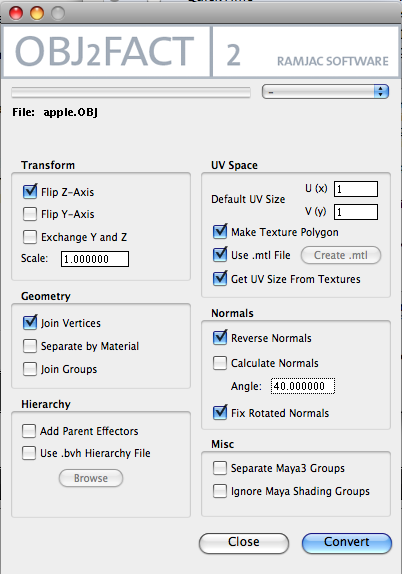
Ola Supernova, Are you playing with OBJ2FACT too? Please, take a look in my settings to .OBJ models: Thanksss Tom
-
Ola Steadicam, BTW: I have Reelmotion installed in a G4 only to cars simulation purpose.. :) Ok, these are some Ian videos using Car Dynamics on EIAS: http://www.eitechnologygroup.com/downloads/tutorials/eias/videos/v7/rodeo2.mov http://www.eitechnologygroup.com/downloads/tutorials/eias/videos/v7/rodeo3.mov http://www.eitechnologygroup.com/downloads/tutorials/eias/videos/v7/rodeo1.mov Thanksss Tom
-
Hey SH, Render time per frame? You can choose How many bounces in the area light.. :) If you want, I can look the prj and see How to set up a Photon system.. Thanksss Tom
-
Ola SH, Its why I asked you to use photons, it will be faster with less blotches and better edges.. Did you know to play with Photons? Thanksss Tom
-
Reflections with GI sec rays/sec GI light
Tomas Egger replied to Michael B.'s topic in EIAS General Forum
Ola Michael, Really interesting test.. Thank you very much Tom -
Ola SH, AWSOME!!! Are you using Permanent Photons maps? Thankss Tom
-
Ola Juanxer, Yes, but its the only particular case, any new future version of XP will come from Ramjac, but Shayadesign asked if XP and Rodeo from version 7 works on EIAS 8. Thanksss Tom
-
Ola Anthony, Please, Do a screen grab of your settings from EIAS 6.5 proj. On EIAS 8, delete the SimCloth build and add a new one (1.1), do the same in your new Universal binary shader.. Deleting old plug-ins and shaders from old EIAS versions, only replacing manually the values are the best way to avoid imcompability when they appear, in many cases, everything works fine, since EIAS 6.5 changed to Universal Binary on Version 6.6, lots of changes was done in all EIAS code. After this, only anable or desable shares or textures in the render window to seel if you have another Old shader giving you prb or its a corrupted texture. Thanksss Tom