
Tomas Egger
-
Posts
3517 -
Joined
-
Last visited
-
Days Won
20
Content Type
Profiles
Forums
Events
Everything posted by Tomas Egger
-
Ola Michael, I like a lot more Vimeo than YouTube. Our EIAS3D videos are totally based on it. The compression is really better. www.vimeo.com A video tip, you can render your final edit movies in QuickTime with PNG codec, which is lossless and 1/3 of data size than a "Animation" codec. Then you can use QuickTime to convert in the best quality of QuickTime H264 codec, it's which I always do. ;) then I upload to Vimeo. Thanks Tom
-
Hey Rick!!!!!! Congrats my friend!!!!! Welcome Michael ;) A huge positive energy to Joly's family ;) Thanks Tom
-
Ola, I'm traveling, out of town. If you want, upload the model, I will take a look. Our new import system will change our workflow ;) Thanks Tom
-
Ola Ito, Please, upload in our FTP.. http://www.eias3d.com/forums/showthread.php?tid=93 Choose the Camera Bug folder and notify us :) Thanks Tom
-
Ola Gian, We are running here, dont worry!!! Its more and more closer :) Thanks Tom
-
Ola Gian, So, Lets wait EIAS 9 :) Thanks Tom
-
Ola AVT, From Stephane to you and all users: “Stéphane Crouzet Hello Alonzo, place your script here "MacOSX/Users/Username/Library/Preferences/Autodesk/maya/2011-x64/scripts". Then open Maya, the Script Editor and enter loadNewShelf ""; in MEL and find the "shelf_modomotion3.mel" file. It works for me.†Thanks Tom
-
Ola Michael, Please, upload your scene, Let me look.. Appears some setting problem.. :) Thanks Tom
-
Ola AVT, MDD dont work with mesh which change the number of polys over time., its a format limit. Thanks Tom
-
Ola Gian, Experiment change all groups AA (group info window) from 1x1 to 2x2 and then you change in the render info window from 4x4 1x1 to 8x8 2x2. Thanks Tom
-
Ola Gianluca, Look this thread, have info to improve renders with GI and Photons, I did a step by step. http://www.eias3d.com/forums/showthread.php?tid=548&page=1 Thanks Tom
-
Ola Alex, Wonderful :) Thanks Tom
-
Ola Michael, Beautiful work!!!, wonderful use of Photons :) Thanks Tom
-
Ola Gianluca, Wonderful use of EIAS 8, you are right, EIAS 9 will bring us speed and the memory limit will be limited only by your amount of physical Ram in your machine. We are running here :) Thanks Tom
-
Ola Vic3D, First test is use a HDRI map like a Adaptive Sky Map, you can have a version to light the scene (512 x 512 pixels), Since our Engine sample the pixels to light our scenes, a small map will be really faster than Huge HDRI maps and one Higher resolution to add in the World Info window in the Raytrace Reflection and Refraction tabs. Then you will rotate the Adaptive Sky map as your taste to light your scene :) I feel it will reach the render time you need, if you want later, or miss it, add another light to push more and mimic better a Sun for example, if this is the specific case. Any Prb, do a really simple prj, I will be glad to help you. Thanks Tom
-

Adobe After Effects CS5 misinterprets .IMG animations' frame rates
Tomas Egger replied to Juanxer's topic in EIAS 8.0.0
Ola Juanxer, No, we didnt change anything, Adobe is changing lots of things these days :( Thanks Tom -
Ola Tango, If am I not wrong, its the only way, export and re-import. Ian used it a lot, lets waiting him to answer :) Thanks Tom
-
Ola Ito, Try to open in EIAS 6.5 before to open EIAS 8.. Interesting ideas by the way you did.. Thanks Tom
-
Ola Dieguito, Its always a pleasure to teach :) Thanks Tom
-
Ola Ito, You did a solution to mix soo many delicate themes. Thanks Tom
-
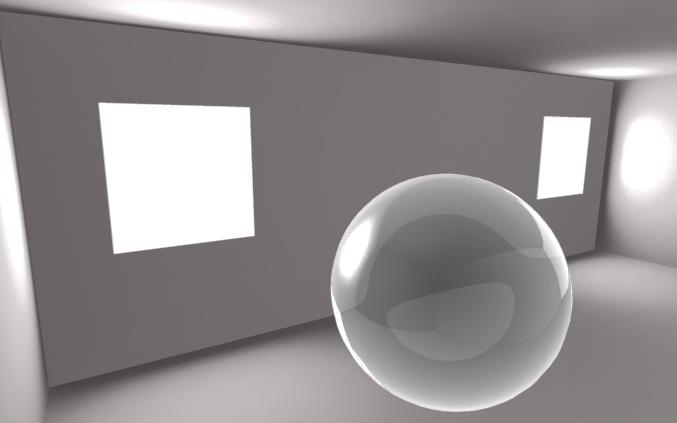
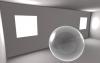
Ola Dan, Now: Photons + Glass 1) Open the Last Photons + Customize project 2) Replace the RED ball Material with a Glass Material from Material Pallete / Sphere Material Reflectivy + Use Fresnel Term to attenuate the reflection center of the sphere + Change the Raytrace Mode pop-up to Normal. 3) Sphere Material Info window / Transparency tab / Main Options Tab / Enable Use Raytrace check box, Transparency slider = 0.001, Refraction Index = 1.33 + Use Fresnel Term as Transparent. 4) To speed up the render, Sphere Group info window / Shadow Tab / Turn off the Receive Shadow check box. 5) Light 1 / Photons / Photons Map Tab, Change Map Mode pop-up from GI to GI & Secondary. 6) Add a second Radial Light in the scene and Change the GI Mode pop-up to Secondary. 7) Change this new light Intensity / Properties / General Tab / from 1.0 to 0.45 and turn off the Enable Highlight check box. This extra Radial light in Secondary mode + Another light with Photons help to have a better glass without Huge render times, you can disable it to see only the Light with Photons working, you will have a darker glass. I use this trick to avoid secondary rays in GI window which make GI renders realllllly slow. 8) Thats it, render a snap shot, it will be like this: Project Attached: Photons+Glass.zip Hope that helps Thanks Tom
-
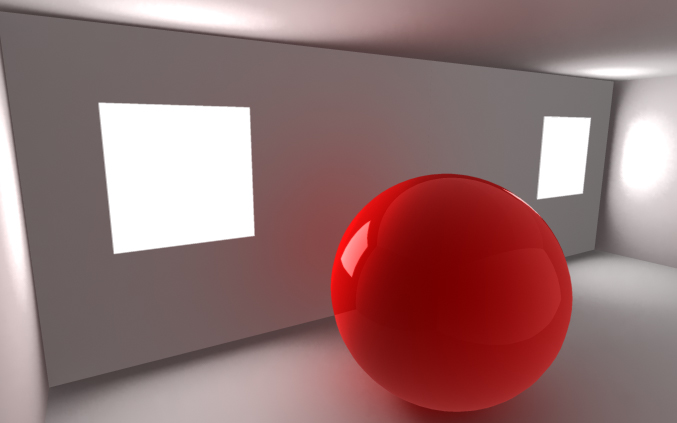
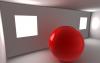
Ola Dan, First: Photons + Reflex 1) Open the Last Photons + Customize project 2) Make the RED ball reflective / Sphere Material Reflectivy + Use Fresnel Term to attenuate the reflection center of the sphere + Change the Raytrace Mode pop-up to Normal. 3) Light 1 / Photons / Photons Map Tab, Change Map Mode pop-up from GI to GI & Secondary. 4) Thats it, render a snap shot, it will be like this: Project Attached: Photons+Reflex.zip Have Fun Thanks Tom
-
Ola Vgd, Interesting.. :) Thanks Tom
-
Ola Dan, Photons are incredible fast!!!! and Amazing results. Later, I can teach How to setup fast Metal reflections and Transparencies in this particular room :) I always have my lights as “Permanent†photon maps. Thanks Tom
-
Hey Apu!!! No Words!!!! GREAT!!! Thanks Tom