

Tomas Egger
-
Posts
3517 -
Joined
-
Last visited
-
Days Won
20
Content Type
Profiles
Forums
Events
Everything posted by Tomas Egger
-
Ola Vic, Exactly.. if you still have a problem copying, please, download again, but in the new computer, because a copy from one machine to another can generate some permission problem. Thanks Tom
-

Rotation sphere in texture map window
Tomas Egger replied to S. Houtzager's topic in EIAS General Forum
Ola S, Not for now, you have the Rotation short cuts in the texture window, but you dont see the visual “gnome†ball. Thanks Tom -
Ola S, Good to know Thanks Tom
-
Ola Steven! Possible problems, is your Camera attached in a Effector? second possible problem the size of your scene, take a look if its too small or too huge.. I saw this happen long time ago since the begging of EIAS.. Thanks Tom
-
Ola Verb, It's a pleasure always! Thanks Tom
-
Hey Rich! Good luck with your store!! Thanks Steven! Tom
-
Ola my friends! Thanks for the kind words! I use EIAS soo much, that gave me a lot of tricks! I love to study and teach ;) Thanks Tom
-
Ola Verb, But are you changing the frame range in the timeline to render? the in and out? Thanks Tom
-
Ola, Northernlights3d take a care of AG shaders: http://www.northernlights3d.com/ All other shaders are available in EIAS 9, the Camera error is because you dont have AG and you will be able to render only in Camera 32, since AG is not ported yet to 64. I opened all projects here and they are rendering fine. Thanks Tom
-
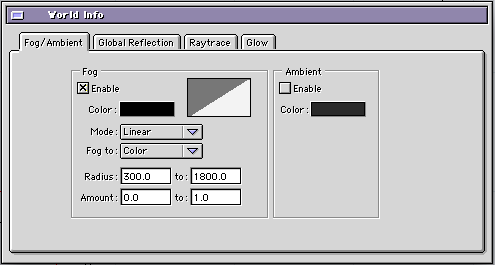
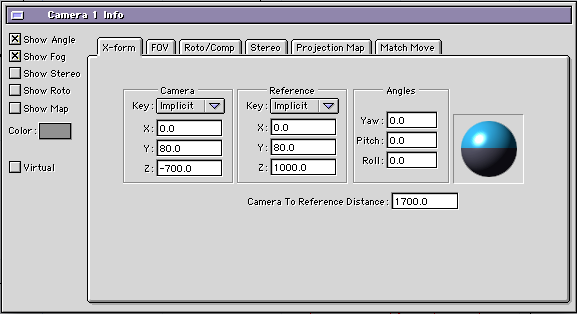
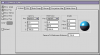
Ola Verb, - All groups need to have white luminance. - World need to have black Fog. - The Camera you are using need to have Show Fog check box activated, so, you can control World Fog Radius Min and Max. Proj attached: DOF_FOG.zip Hope that helps Thanks Tom
-
Ola Vic, When you double click Camera, go to Camera settings, if Camera is running in 32 bits mode, you will be able to allocate 2000MB, if you change to 64 bits architecture and click in the optimize button, you will be able to run all your RAM memory. Thanks Tom
-
Ola! Awesome! I would like to post in our gallery. Thanks Tom
-
Hey Aziz, As soon we have time, we will produce more! Thanks Tom
-
Ola, Enjoy my friends :) a Huge thanks to Joe! Tom
-
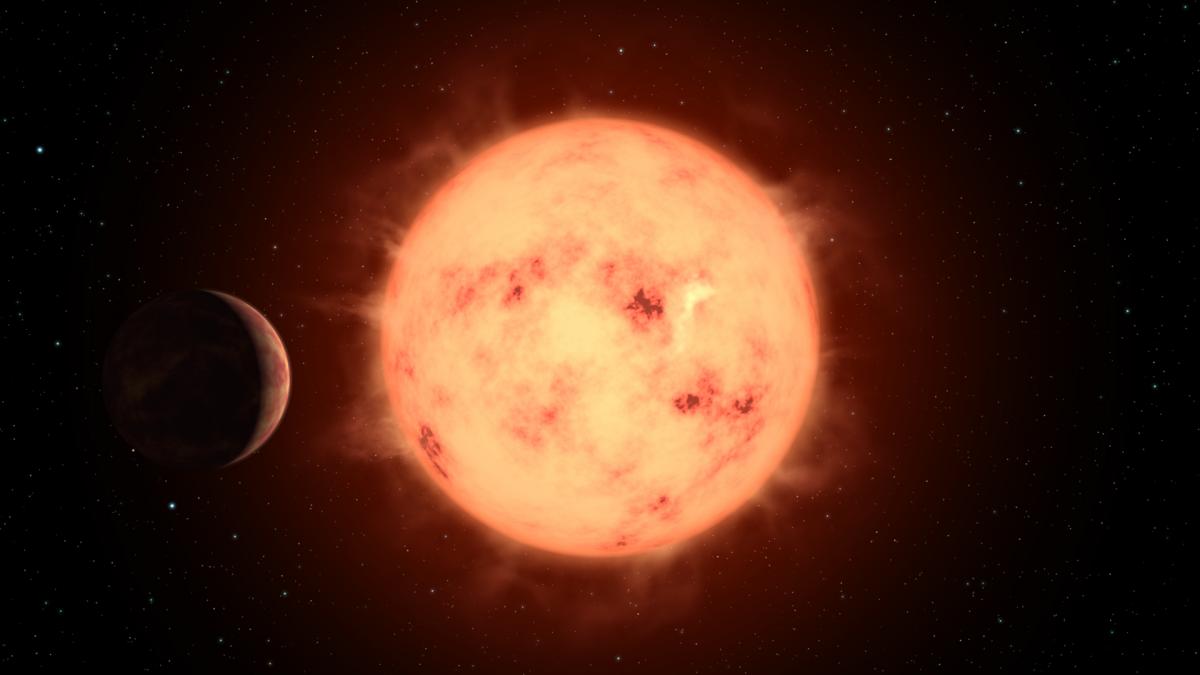
Ola, Joe shared with us his amazing way of Planets creation! EIAS and After Effects projects included! Red Star Project Hope you like it Thanks Tom

-
Hey Doug! Great! Show us later your work :) Thanks Tom
-
Ola, Since you rendered in Frames, its better to move directly to another folder, EIAS probably cant Stitch, since you choose individual frames already. Import in AE as a frame sequence. Thanks Tom
-
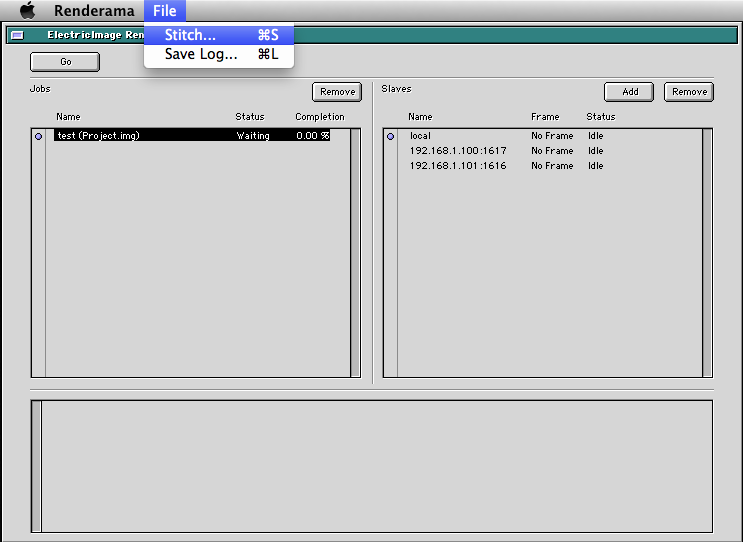
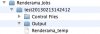
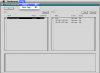
Ola Doug! Take a look inside the EIAS 9 folder / Renderama Jobs If exist a sequence, need to be there. To manual Stitch in Rama, its in the Rama menu bar. Pay attention if you have a correct sequence to be stitched, otherwise, move the frames to another folder and complete with missing frames, if you need to render only the end, open EIAS and render again using rama only the ending and finish the entire sequence on After Effects, Hope that helps Thanks Tom
-
Ola, New video tutorial by Bruce Hazelton! Motion Capture to Keyframes Hope you like it Thanks Tom
-
Ola Verb, This kind of tests are really specific, some will be faster like yours, others, slower. Huge scenes are needing one Camera only + 64 bits on most of the cases. Thanks Tom
-
Ola, Its why we love EIAS :) Thanks Tom
-
Ola Ken! Its good to show EIAS more! Thanks Tom
-
Ola, In this special interview Tomas Egger–the owner and leader of the renowned Electric Image Animation System and well-regarded VFX supervisor and film director–speaks to Architosh about the re-emergence of EIAS, it’s latest version 9 features, its influential past and its promising future with EIAS 3D. Architosh link Thanks Tom
-
Ola, Thanks Verb Tom
-
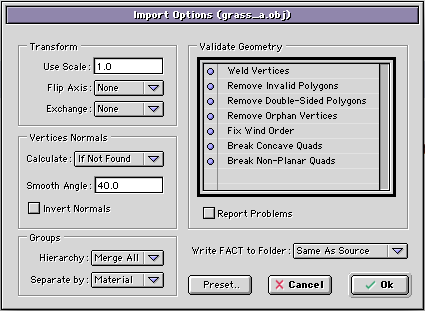
Ola Vic! You can import Speed Tree with Textures placed even in the Demo, you need only to choose: Hierarchy: Merge all Separated: by Material Thats it, wait a bit to Animator load the geometry and since Speed Tree Export groups materials with Maya terminology, you will need to find the textures in the folder. Probably FBX will not be able to load the Speed Tree animation, it will need a specific plug-in for that. Thanks Tom